
The six steps in under a minute, on a different example (a small store): prompt, queue a follow-up, look on the canvas, Select, edit by hand, publish. The agent's runs are sped up.
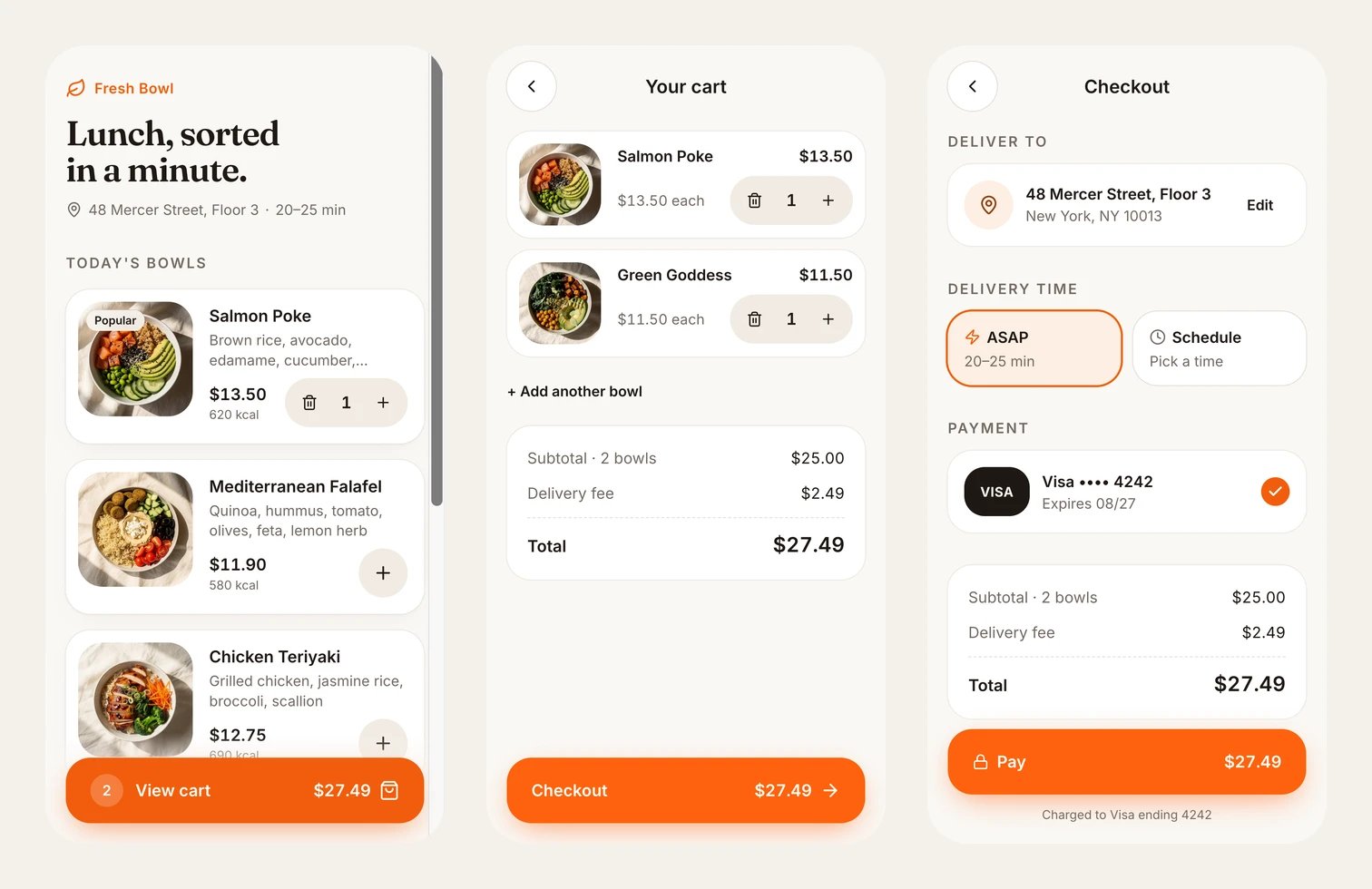
What you end with: three linked, working screens. These are from the run this guide is written from.
- Who it is for: a founder or product manager with an idea and no designer.
- What it costs: the run below used 85 credits and took under five minutes. Every organization gets 500 free credits every 30 days, and can spend at most 250 of them a day, so this fits in one day on the Free plan.
- What you need: a Polymet account. Nothing to install.
1. Write the idea as a prompt
A prompt that works says four things: what the app is for, which screens it has, what is on each, and what to leave out.2. Let the agent build
The agent may ask a few Quick questions first. Pick an answer for each, or type your own. If you do not answer, it continues on its own after a short countdown. Then it builds. You see its steps in the chat on the left and the screens appear on the right. When it stops, the chat shows what the generation cost. You’re done with this step when the chat ends with a summary of each screen and the screen on the right responds when you click it.3. Click through it like a user
Open the prototype and do the main task from start to finish. For Fresh Bowl: add two bowls, open the cart, check out, pay. Check the things a drawing cannot show you:- Does the cart total add up?
- Does every button go somewhere?
- Is there one obvious next step on each screen?
4. Fix what is off with Select
Click Select in the toolbar, click the element you want to change, and write the change. Each note gets a number and appears under PENDING EDITS above the prompt input. You can hold up to 10 notes at a time. Send them together with the send button, and then you can add more.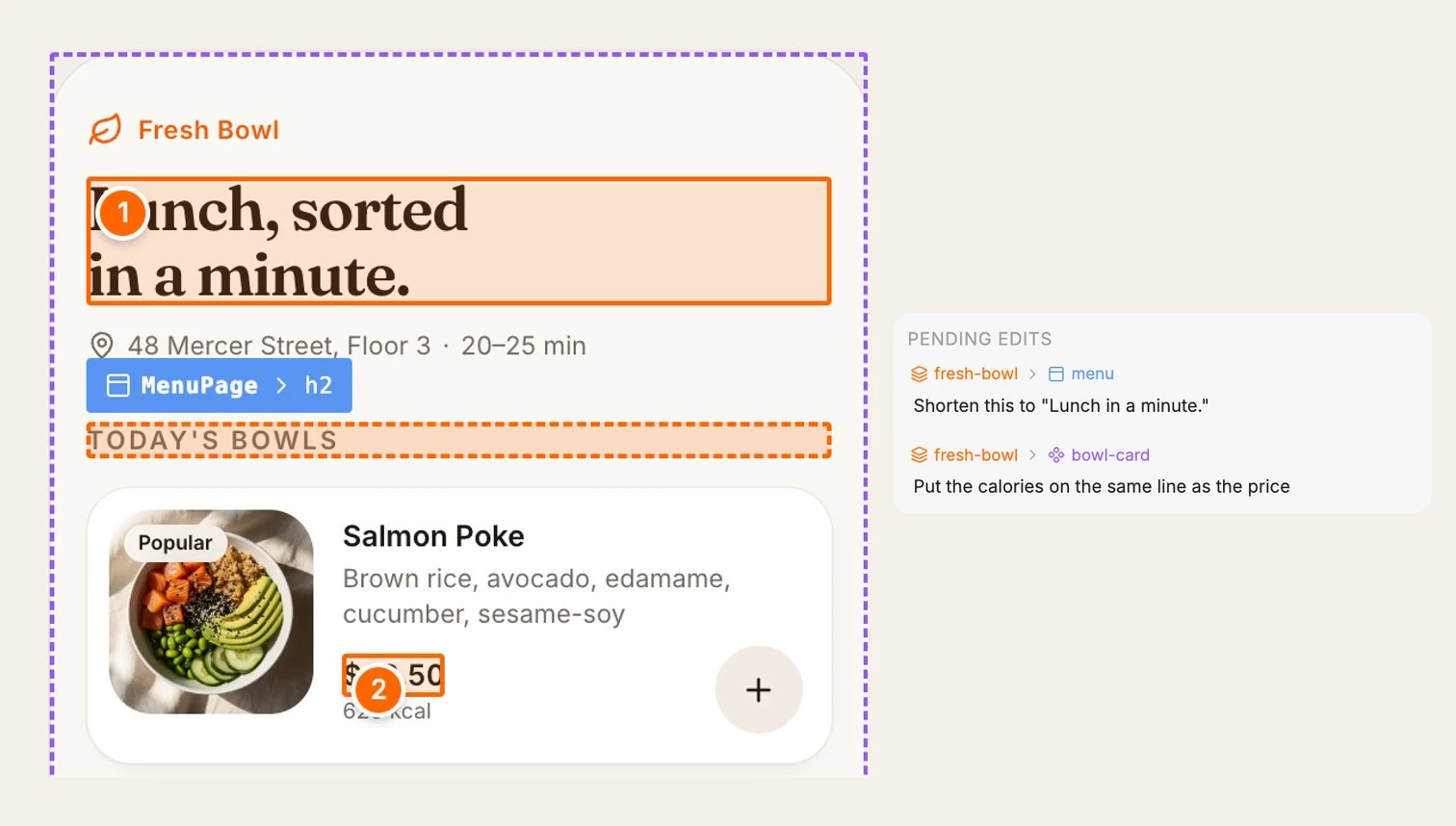
Two notes on two elements, sent to the agent in one go.
5. Publish
- Click Publish in the canvas header. The popover says Not published.
- Click Publish.
- The popover now says Published and shows the live link. Copy it with the copy button.
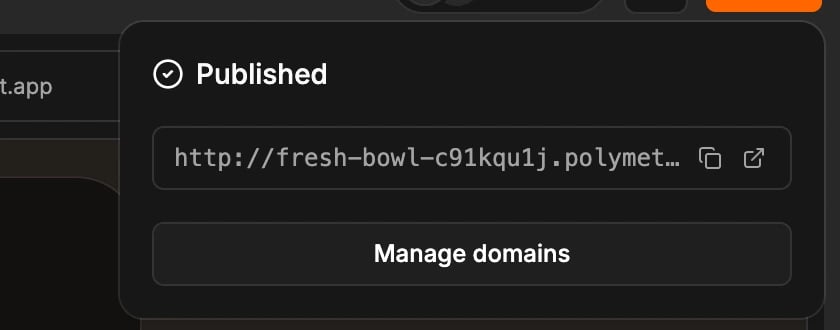
After publishing: the live link, with buttons to copy it or open it.
You’re done when
- The live link opens in a private browser window, where you are signed out.
- On a phone, you can add a bowl, open the cart and reach the confirmation screen.
- The total on the checkout matches the cart.
If it goes wrong
- The Publish popover says “There are no prototypes yet”. The agent built pages but no prototype. Click Create a prototype and send the draft it puts in the prompt input.
- Publish is disabled and a notice says “Only main can be published” (with your default branch’s name). You are on another branch. Click Switch to main.
- The live link shows an older version. A link keeps showing what you published. Open the popover and click Update.
- A generation will not start. On the Free plan you may have reached the daily limit of 250 free credits. It resets at 00:00 UTC. See How credits work.
Next
- Share a project: let teammates into the project itself, not only the live link
- Compare options side by side: ask for two or three versions of a screen and pick one
- Add a backend: keep real data and let people sign in
- Write better prompts: get closer on the first generation