
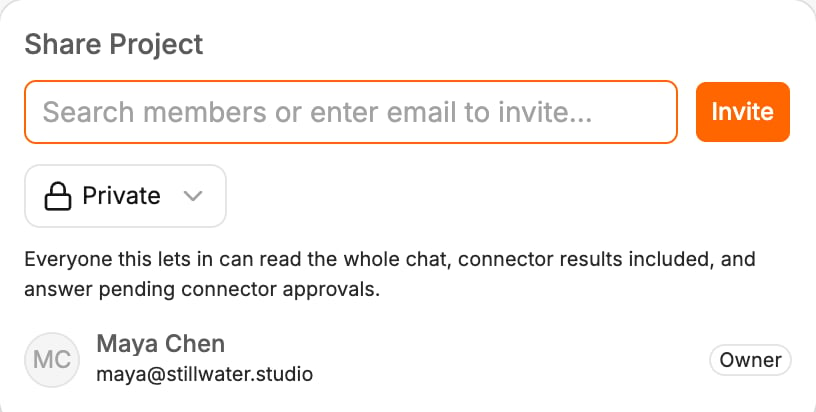
Choose who has access
- Click Share in the canvas header (the avatars next to it show who has access).
- Pick an option in the access menu:
New projects start as Private. Inviting someone switches a private project to Only people invited. Only the project’s owner can change access.
Everyone you let in can read the whole chat, including results from your agent connectors, and can answer connector approvals that are still waiting.
On the projects page, Share with team in a project’s menu opens it to everyone in your organization, and Stop sharing with team closes it again.
Invite people
With Only people invited, the popover lists your organization’s members:- Click Invite next to a member to add them. Once they are in, Invite becomes a menu with Remove.
- Or type an email in Search members or enter email to invite… and click Invite.
Related
- Invite your team — add people to your organization
- Work at the same time — see who else is in the project
- Publish a prototype — a live link for people without Polymet