
Connect a tool
- Click Agent connectors in the generation input, on the canvas or the projects page.
- Find the tool and click Connect.
- For most tools, a short explainer opens: “Connect Polymet to Notion”. Click Connect, sign in with the tool in the popup, approve the access, then close the popup.
- A few tools connect with an API key instead. Paste it into API key and click Save key. The link next to the field takes you to the page where you create one.
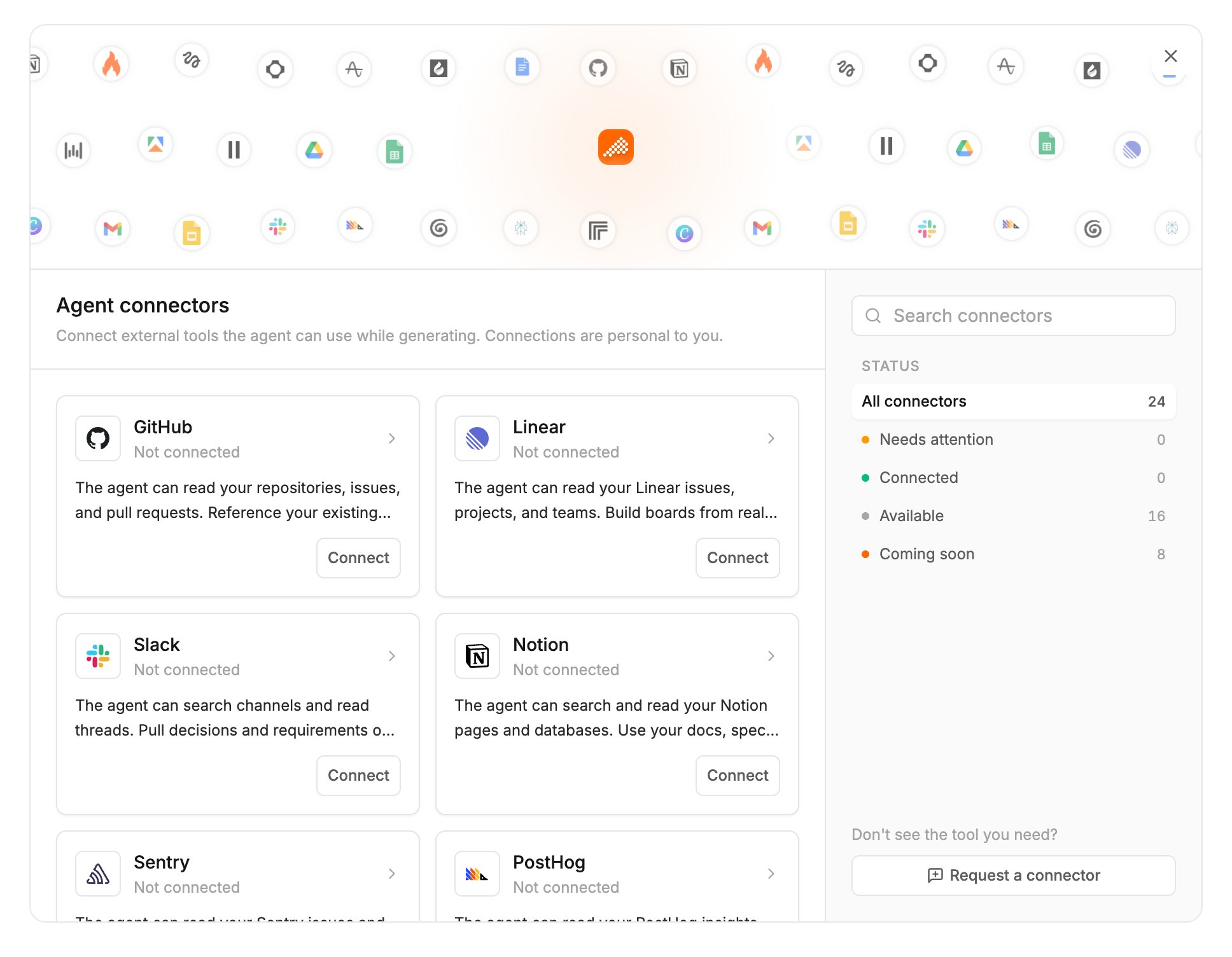
Available connectors
Each connector has its own guide.
Perplexity, Apify, fal, Replicate and Higgsfield bill your own account with that tool. Calls the agent makes there spend your credits with them.
Approve each call
When the agent wants to use a connector, the generation pauses and the thread shows a card, such as “Call Notion”. It lists exactly what will be sent. If the tool says the call changes data, the card says so.- Click Accept to send it. The card then shows what came back.
- Click Reject and nothing is sent.
Accept all
To stop being asked, turn on accept-all for the session in either place:- the arrow next to Accept on a card, then Accept all in this session
- the fast-forward button in the generation input, or Shift+Tab while you type
Turn a connector off or disconnect it
- Agent access switches a connector off for the agent and keeps your connection. Use it on the card or in the connector’s details.
- Disconnect removes your connection. A generation already running keeps it until it finishes. You can connect again any time.
Results stay in the thread
What a connector returns is saved in the thread, like the rest of the conversation. Anyone who can open the project can read it. Before you share a project more widely, check what its threads hold. The Share menu reminds you of this.Request a tool
- Missing a tool? Click Request a connector at the bottom of the Agent connectors window. A support chat opens with your request started.
- Need a connected tool to do more? Open the connector and click Request access under “Need the agent to do more with” that tool.
Related
- Integrations, connectors and the MCP server — how agent connectors differ from GitHub sync and the Polymet MCP server
- Prompt the agent — confirmations and stopping a generation
- Share a project — who can read a project’s threads