
1. Describe what you want
On the projects page, type a prompt into the generation input and send it.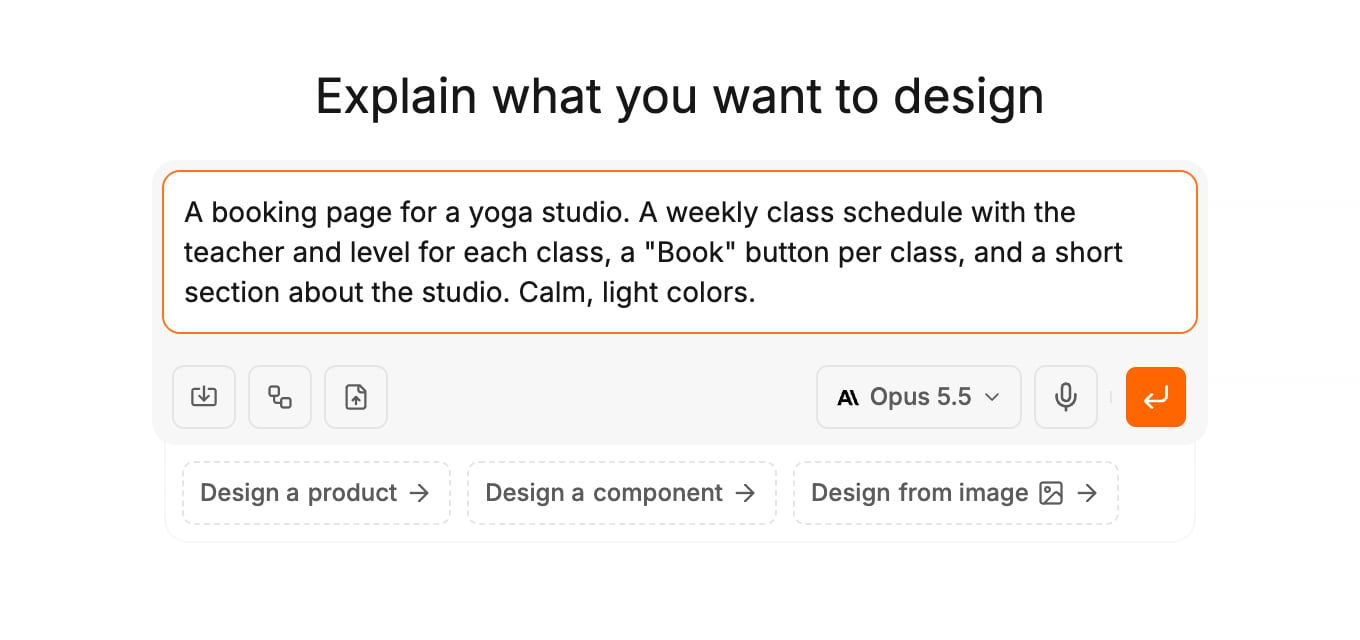
2. Answer the agent’s questions
Before it builds, the agent may ask a few Quick questions, such as which pages you need. Pick an answer for each, or type your own. If you do not answer, the agent continues on its own after a short countdown.3. Watch it build
The agent works in the chat on the left. Screens appear on the canvas as they are built. Each finished generation saves a version, so you can always go back.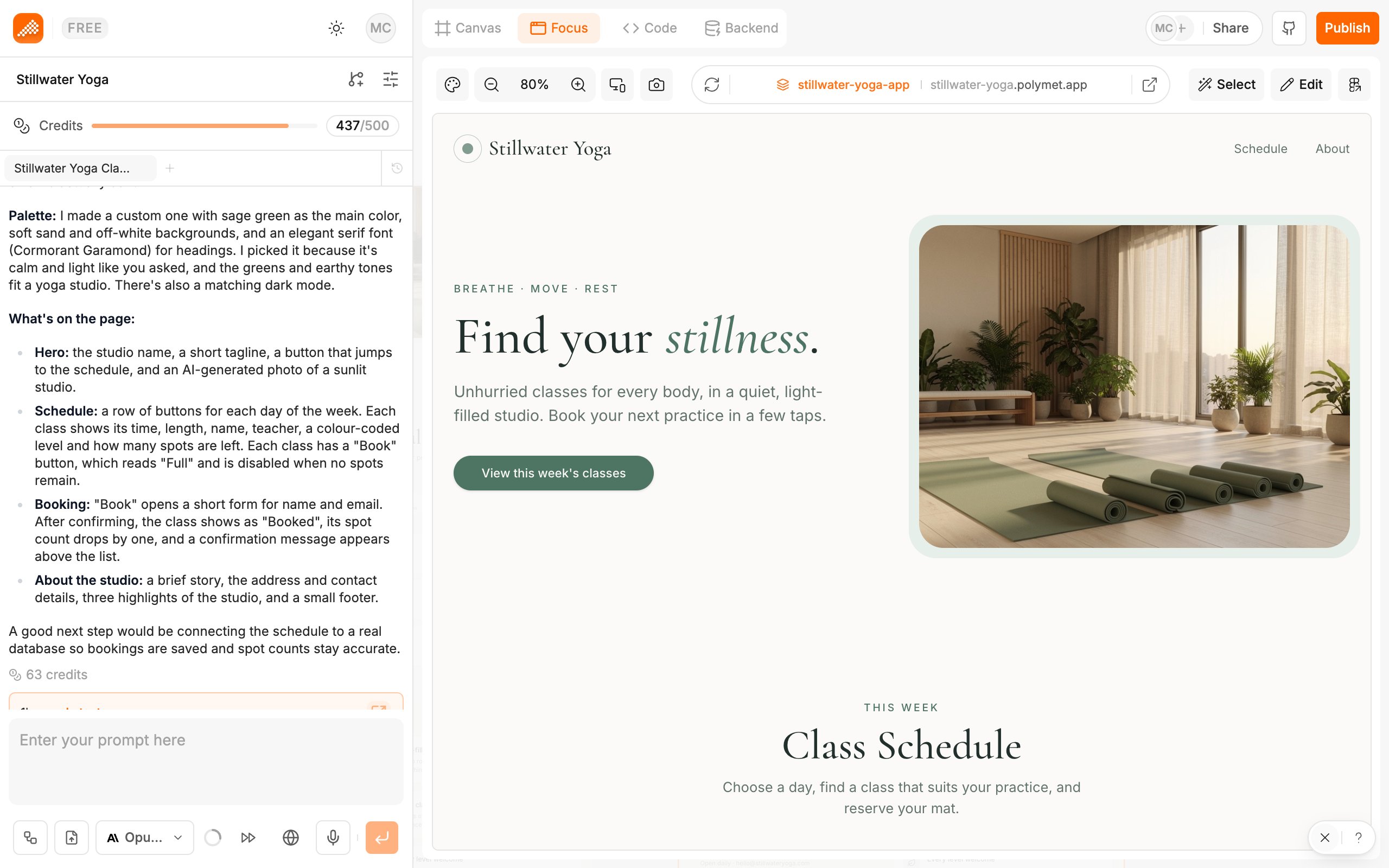
4. Change one thing
Open a screen, click Select in the toolbar, and click the element you want to change. Write what should be different, for example “make this button full width”. Save the note. It appears under PENDING EDITS above the generation input. Add notes to as many elements as you like, then send them with the send button, the same way you send a prompt. For small visual tweaks, click Edit instead and change spacing, colors or text directly. More in Select and edit with AI and Edit visually.5. Publish
Click Publish, pick the prototype to publish, and open its live link. Anyone with the link can use your app. When you make more changes, publish again to update the link. More in Publish a prototype.Next
- Prompt the agent — attachments, voice, queued messages and what the agent can do
- Add a backend — a database, sign-in and file storage for your app
- Invite your team — work on the same project together
- How credits work — what generations cost