
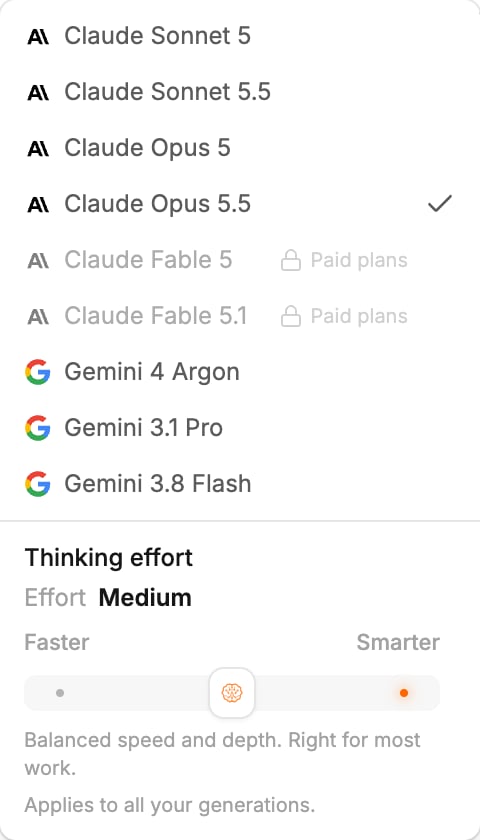
Pick a model
- Click the model name in the generation input.
- Pick a model from the list. Your next prompt uses it.
- Polymet asks whether to make it your default, for example Use Claude Sonnet 5.5 as your default model? Click Set as default to start every new thread with it, or Not now to use it in this thread only.
/model in the generation input, then part of a model’s name, and pick from the list.
The model can’t be changed while the agent is waiting for you to approve an action. The menu says Model is locked during tool confirmation until you answer.
The models
On the Free plan, the Fable models are greyed out and marked Paid plans. Every paid plan includes them, Keep Alive too. See Plans.
If your default model is one your plan no longer includes, the model button shows a lock. Pick another model before you send.
Credits are charged by AI model usage, so a model with higher rates, a higher thinking effort or a longer generation spends more. See How credits work.
Thinking effort
Open the model menu and drag the Thinking effort slider between Faster and Smarter:
The setting is yours, not your project’s. It applies to all your generations, on every model and in every project.
Web search
The globe button in the generation input lets the agent search and read the web while it works, for example to look up a library’s docs or read a page you name. It is on to start with.- On: Web search is on — the model can search and read the web
- Off: Web search is off — the model can’t search the web
Related
- Prompt the agent — the rest of the generation input
- Threads, context and queued messages — how a new thread picks up your default model
- How credits work — what a generation costs
- Plans — which plan includes the Fable models