
The Overview page
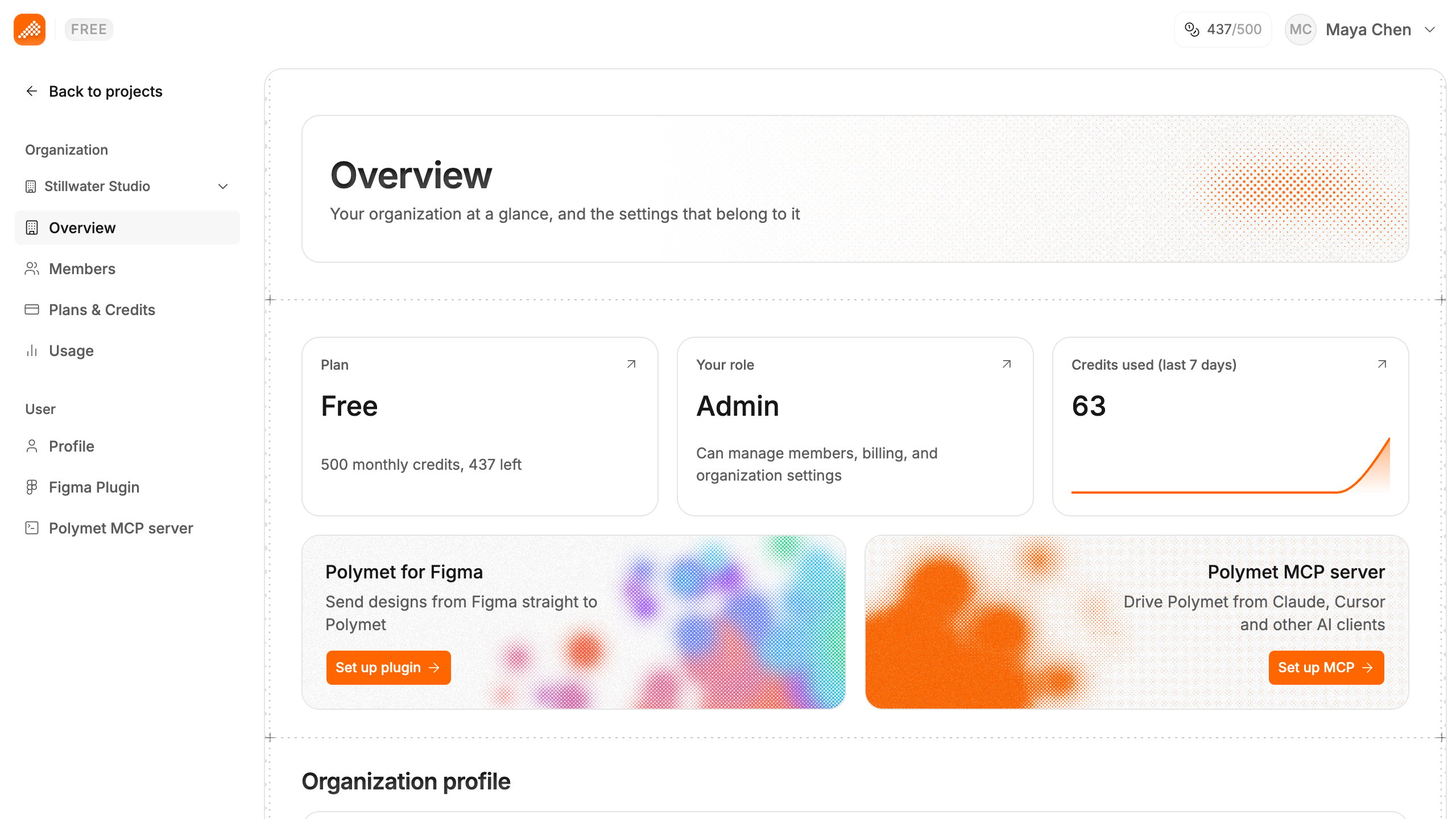
Click your avatar to open the profile menu, then click Settings. You land on Overview, which shows three cards:- Plan — your plan, its credits, and how many are left. The arrow opens Plans & Credits.
- Your role — Admin or Member, and what that role can do. The arrow opens Members.
- Credits used (last 7 days) — the organization’s spend, day by day. The arrow opens Usage.
Rename the organization
Only admins can rename the organization.- On Overview, under Organization profile, click the pencil next to Name.
- Type the new name in Rename organization and click Save.
Switch organization
If you belong to more than one organization, pick which one you are working in:- In Settings, use the switcher under the Organization heading in the sidebar. Overview, Members, Plans & Credits and Usage then show that organization.
- On the projects page, use the switcher in the profile menu. Organizations where you are an admin are marked ADMIN.
Leave an organization
- Go to Settings > Members.
- Open the menu on your own row, marked (you), and click Leave organization.
- Confirm with Leave.
- you are the only admin. Make someone else an admin first.
- it is your only organization.
Related
- Invite your team — add people and change their roles
- See who used what — credit use per member
- Plans — what each plan includes