
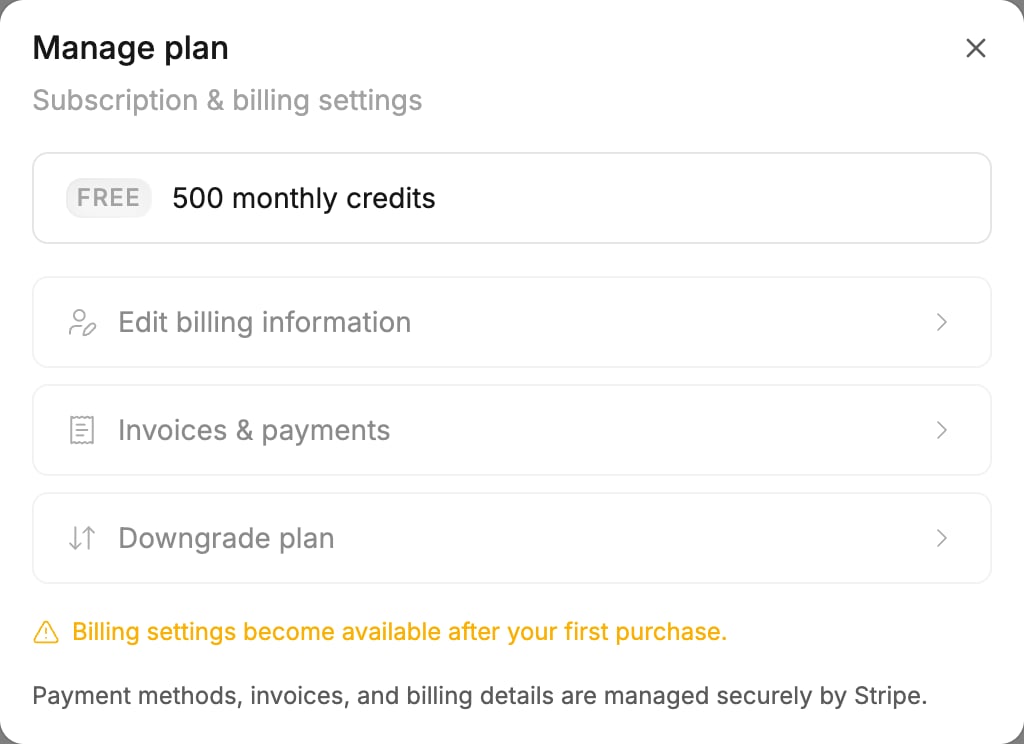
Invoices and billing details
- Go to Settings > Plans & Credits and click Manage.
- In Manage plan, choose:
- Invoices & payments — every invoice and receipt, including credit pack purchases, and your saved payment methods.
- Edit billing information — the details printed on your invoices, such as the name and address.
When a payment fails
If a payment does not go through, a red banner appears at the top of Polymet: “Payment failed, update payment method to continue using Polymet”. Go to billing settings takes you to Settings > Plans & Credits, where a box titled There’s a problem with your payment shows:- the date the payment started failing
- the unpaid amount and the date it was issued
- what happens next
- Your plan, its features and the credits you already have keep working.
- New plan credits do not arrive until a payment succeeds.
- Free credits still refill on schedule.
Fix it or stop
- Update payment method opens the billing page, where you can add a new card or pay the failed amount. Once the payment succeeds, the banner goes away and the credits for the paid period arrive.
- Cancel now ends the plan straight away and stops the retries. The dialog Cancel your plan now? asks you to confirm; Keep my plan backs out. Credits you already have stay until they expire. To come back later, pick a plan again.
Related
- Change or cancel your plan — cancel at the end of the period instead
- How credits work — what happens to credits you already have
- Buy more credits — credit packs and their receipts