
Design system, project or theme
A project linked to a design system uses the design system’s theme, so its own theme is locked until you unlink.
Create a design system
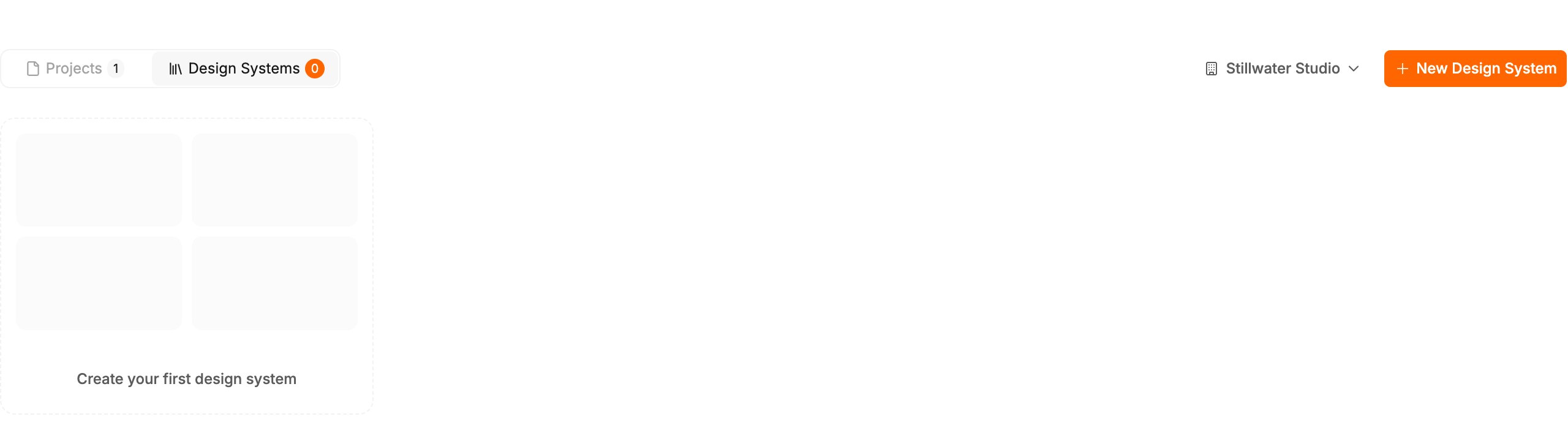
- On the projects page, switch to Design Systems and click New Design System.
- In Create new design system, pick how to start and click Continue:
- Create a design system with AI: name it in Design system name and click Create design system. It opens on the canvas. Ask the agent for the components you need, the way you would in any project.
- Import design system from Figma: opens the Figma import, which brings your Figma frames in as a new design system. See Import from Figma.
- When it is ready, release a version so other projects can link it.
Import path
Import path is optional and set when you create the design system. It is the name other projects use in their code to import its components. It defaults toshared, and can hold letters, numbers, hyphens and underscores:
Turn a project into a design system
- Open the project, then Project settings > Design System.
- Under Convert Design System, click Convert, then Convert again to confirm.
Deleting a design system
Once a design system has a release, it cannot be deleted from the projects page. Its menu says This design system has releases. Please contact support to delete it.Related
- Release a design system — make a version available to other projects
- Use a design system in a project — link, update and unlink
- Themes — one project’s colors and fonts