
What Polymet can and cannot touch
- Only what you install the app on. Polymet reaches the GitHub accounts and organizations where you install the Polymet app, and on GitHub’s install page you choose which of their repositories it can see.
- It creates private repositories. When you link a project, Polymet creates a new private repository and pushes the project’s code to it.
- It pushes and pulls code. Every save in a linked project is pushed to the repository, and changes pushed to the repository come back into Polymet. Pushes use the GitHub account of the person who linked the project, whoever made the change in Polymet.
- Unlinking leaves the repository. The repository and its code stay where they are.
- It deletes a branch on GitHub only when you ask. When you delete a branch in Polymet, you choose whether to also delete it on GitHub.
- Rolling back can rewrite a branch. When you roll back a linked project, Polymet first copies GitHub’s current version of the branch to a new branch named
backup/followed by a timestamp, then force-pushes the older version.
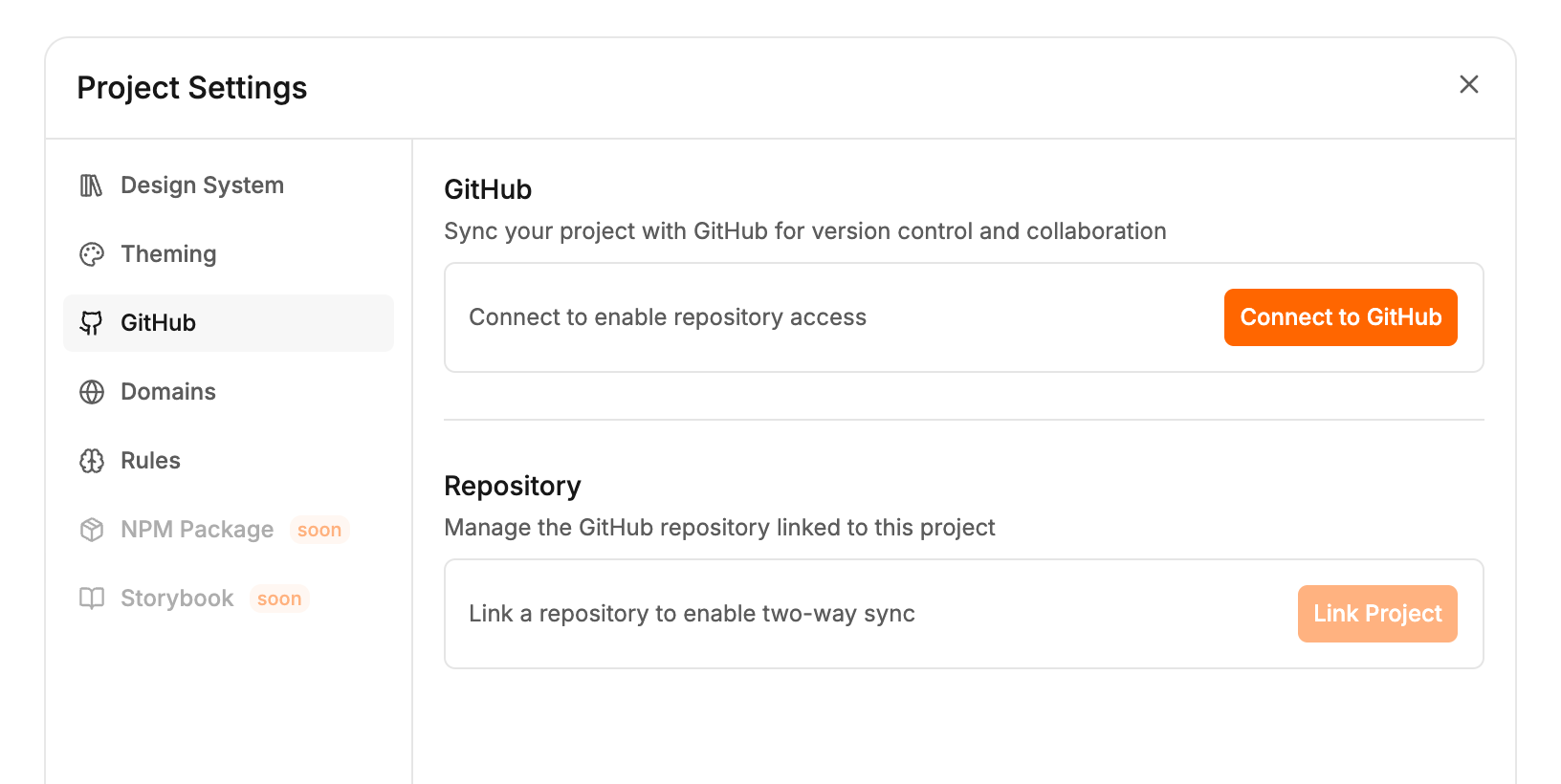
Connect your account
- Open a project and click the GitHub button at the top of the screen. Project settings opens on the GitHub tab.
- Click Connect to GitHub.
- Approve Polymet on the GitHub page that opens.
- You come back to Polymet, and the tab shows your GitHub name with a Connected badge.
Install the app on an organization
Polymet needs the app installed before it can create a repository. You install it from the Link Project dialog, which needs a paid plan; on the Free plan the button is turned off. Importing a repository you already have works on every plan: see Import from GitHub or a ZIP.- On the GitHub tab, click Link Project. If the app is not installed yet, the dialog says so.
- Click Add Organization. GitHub opens in a new tab.
- Pick your personal account or an organization, choose the repositories Polymet may use, and install.
- Back in Polymet, the Link Project to GitHub dialog opens with that account picked under Owner.
If the connection breaks
If you revoke Polymet on GitHub, or the app is removed from an organization, Polymet shows GitHub Connection Lost the next time it tries to push.- Click Reconnect GitHub if your authorization was revoked.
- Click Open GitHub Settings if the app was uninstalled, then install it again.
Related
- Sync a project with a repository — link a project, how two-way sync works, and unlinking
- Import from GitHub or a ZIP — start a project from a repository you already have
- Branches — how project branches map to GitHub branches