
Connect Figma once
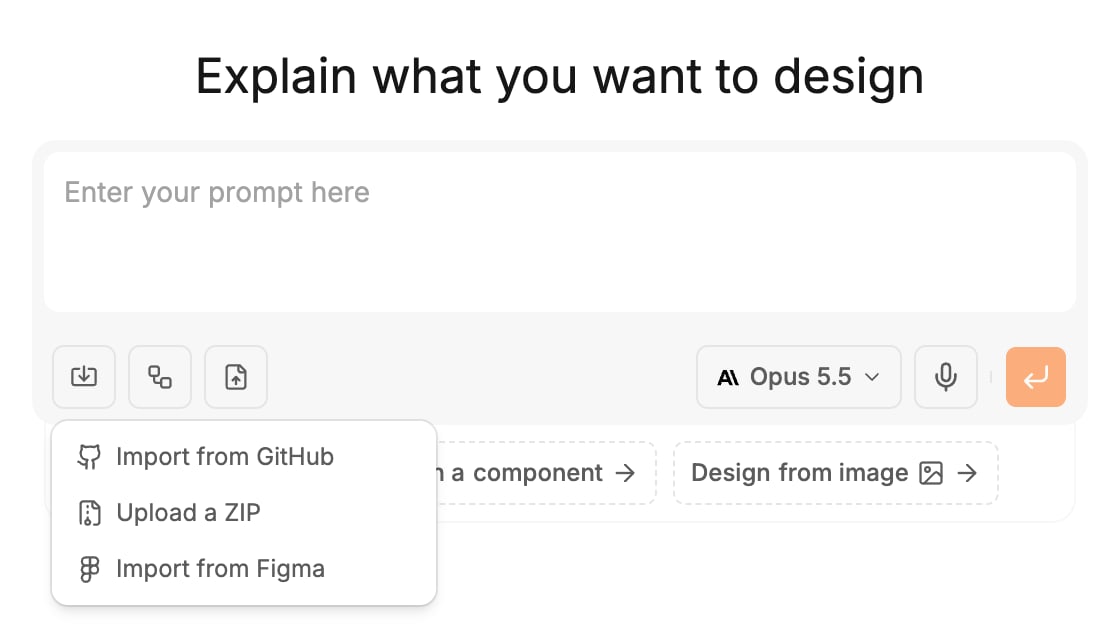
- On the projects page, click the import icon in the generation input.
- Choose Import from Figma.
- The first time, a Connect Polymet to Figma dialog opens. Click Connect.
- Sign in to Figma in the popup and approve access. The popup closes and the import dialog opens.
Import frames
- In Figma, copy the file link with Cmd+L (Ctrl+L on Windows), or Share then Copy link.
- Paste it into the link field and press Enter. The link looks like
figma.com/design/.... - Pick a page under Pages, or open Published components under Library for the file’s component sets.
- Click the frames you want, up to 10. Your picks show as small thumbnails you can remove, under the page list.
- Choose where they go:
- Import to new project creates a project from them.
- Add to existing lets you pick one of your organization’s projects or design systems.
- Add a prompt if you like, for example “Make the dashboard responsive and use real chart components”. Or pick one of the suggested prompts.
- Click Import.
Import a design system from Figma
On the projects page, switch to design systems, click New Design System and choose Import design system from Figma. The same dialog opens, and Import to new design system creates a design system project instead.The Figma plugin
You can also send frames from inside Figma with the Polymet plugin.- Go to Settings > Figma Plugin.
- Click Open in Figma to install Polymet for Figma from the Figma Community.
- Click Generate key and copy the key. It is shown only once, and it is tied to your account, so do not share it.
- Paste the key into the plugin to sign in.
- Select frames in Figma and send them from the plugin. Polymet opens with them under Selected in Figma.
- Choose a new or existing project and click Import.
Limits and access
- Up to 10 frames, or up to 10 component sets, per import from the dialog.
- Published components only lists component sets you have published in Figma. If there are none, it says “This file has no published component sets”.
- To remove Polymet’s access, open the menu with your Figma name in the dialog and click Disconnect.
Related
- Export to Figma — send a Polymet design back to Figma
- Design systems — what a design system project is
- Prompt the agent — keep refining after the import
- Import from GitHub or a ZIP — start from existing code instead