
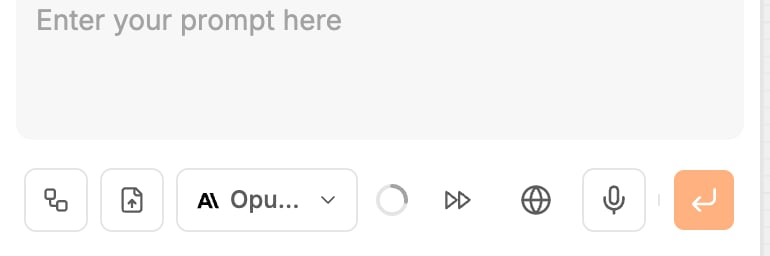
Send a prompt
- Click into the generation input and describe what you want. Enter and Shift+Enter start a new line.
- Press Cmd+Enter (Ctrl+Enter on Windows), or click the send button.
Attach screenshots and files
Click the file icon at the bottom left of the input, drag files onto the input (it shows Drop files to attach), or paste them.
If several files together are too large for the model to read, the input says Attachments are too large to fit the model’s context — remove one or use smaller files.
Dictate a prompt
Click the microphone and speak. You can record for up to 30 seconds; the button counts down. Click it again to stop. Your words are added to the prompt, so you can edit them before you send.Suggested prompts
On the projects page, under the generation input, three buttons offer ideas: Design a product, Design a component and Design from image. Click one to see three example prompts, then click a prompt to put it in the input. Some come with an image attached.Answer quick questions
Before a large piece of work, the agent may ask a few questions first. They appear above the generation input under Quick questions, with a dot for each one.- Pick an option for each question, or type into Or type your own….
- Add anything else in the generation input. It reads Add additional notes… (optional).
- Click Submit.
Plans for larger requests
For a bigger request, the agent writes a plan first and works through it. The chat shows Created plan, and the plan appears in the file list under Plans with its progress. See Pages, components and files.Approve the agent’s actions
Some actions wait for your approval before they run, for example:- deleting a file
- running a query on your database: Accept this SQL query on your database?
- changing your database’s structure: Deploy database migrations now?
- adding or removing backend functions: Deploy backend endpoints now? or Delete these backend endpoints?
- calls to your agent connectors
Generated images
When a design needs a picture, such as a hero photo or an illustration, the agent can make one. The chat shows Generating image, then Generated image with its shape, the prompt it used and a preview. Click the preview to see it full size.Stop a generation
While the agent works, the send button turns into a red stop button. Click it to stop.- If a teammate started the generation, Polymet asks first. Stop generation stops it for them too; Keep it running leaves it.
- If you have queued messages, choose Keep queue to keep them for later, or Discard queue to drop them. See Threads, context and queued messages.
When something breaks
When a screen fails to build, an Errors to fix card appears in the chat, listing each file with a problem. Click a file to jump to it, or open it to read the error and copy it.- Fix errors — free asks the agent to fix them. Fixes don’t use credits, but your organization needs a balance above zero to start one.
- It’s okay hides the card.
Related
- Models and thinking effort — the model menu and the web search button
- Threads, context and queued messages — sending while the agent works, and slash commands
- Select and edit with AI — point at elements instead of describing them
- Write better prompts — what to put in a prompt
- How credits work — what a generation costs