
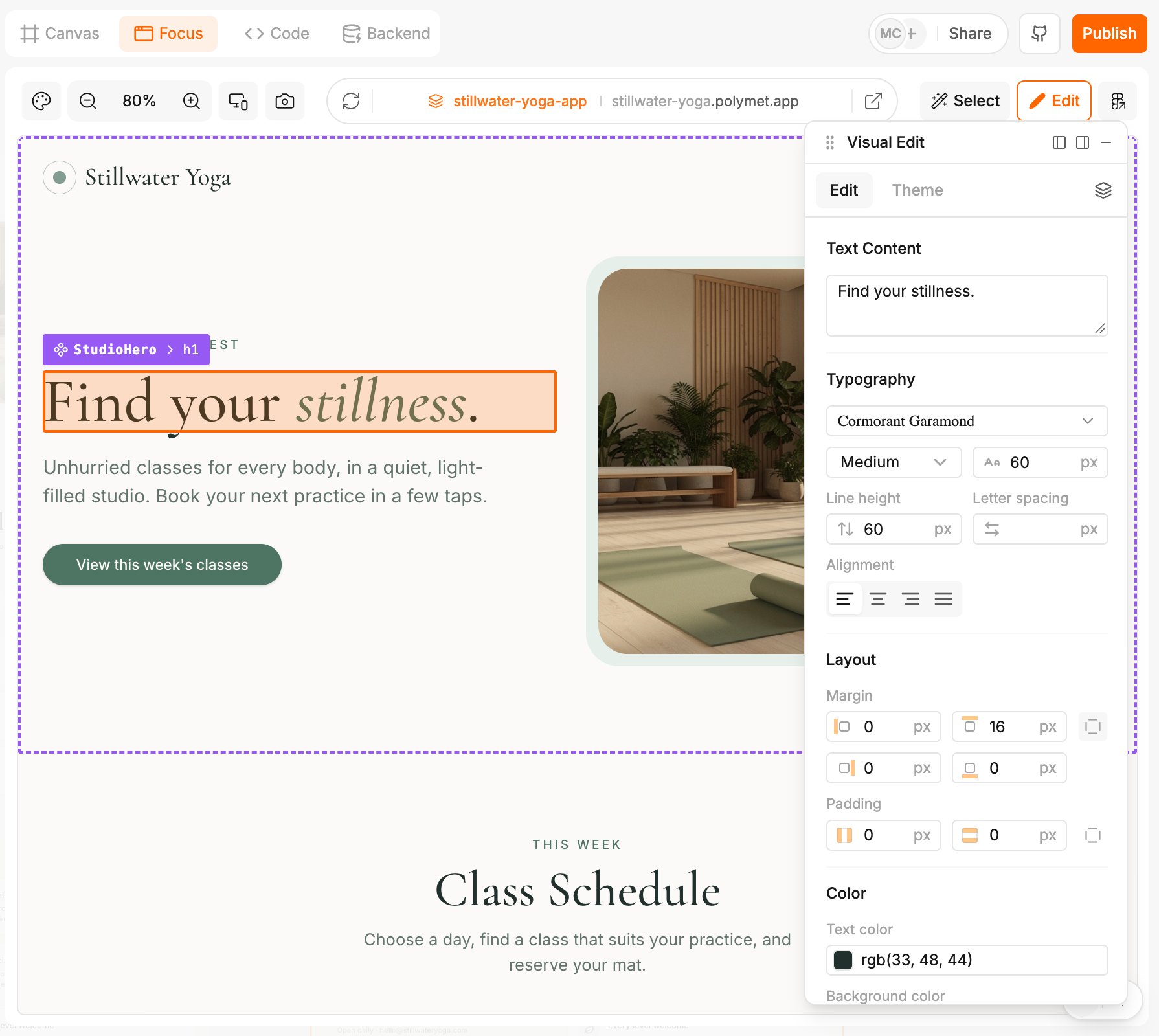
Open the visual editor
- Open a page or component in Focus.
- Click Edit in the toolbar above the preview. On a narrow window it shows only its pencil icon.
- The Visual Edit panel opens as a small bar in the corner of the preview.
- Click an element in the preview. The panel opens with that element’s current values.
What you can change
Once you change something in a group, an undo arrow appears beside its name. Click it to put the group’s original values back.
Change text in the Text Content box.
Find an element in the layer tree
Click the layers icon at the top of the panel (its tooltip says Toggle layers) to see the page as a tree. Click a row to select that element. Shift-click selects a range of rows. The icon beside it, Expand all layers, opens every level.Save your changes
When you change something, the toolbar above the preview shows three buttons: an X to discard, a save icon, and Save with AI.- The save icon (tooltip “Save changes”) writes your changes straight into the code. A dialog lists the files it will update. Click Save to confirm. It is instant and costs no credits.
- Save with AI hands the changes to the agent instead. A STAGED FOR AI card appears above the generation input, showing “Visual edits” and the number of changes. Add a note if you like, then send. The agent applies the changes you previewed, in the style of your code.
- The X throws every change away after you confirm.
Click Edit, pick the headline, change its text. The preview updates as you type, and the save buttons appear in the toolbar.
Move the panel
Drag the panel by its title bar. Use the two dock icons in the title bar to pin it to the left or right of the preview, or drag it to either edge. The minus button collapses it to its title bar. Docking needs a desktop-width window.Limits
- You can edit the latest version only.
- The visual editor and the code editor cannot be open with changes at the same time. Save or discard one first.
- The Theme tab in the same panel changes the whole project, not one element. See Themes.
Related
- Select and edit with AI — describe a change in words instead of making it yourself
- Themes — colors, fonts and radius for every page at once
- Edit code — change the files directly
- Versions and rollback — every save makes a version you can go back to