
Turn on Select, click an element, write a note. Each note joins the pending edits above the generation input.
Pick elements and describe the change
- Open a page or component in Focus.
- Click Select in the toolbar above the preview. On a narrow window it shows only its wand icon.
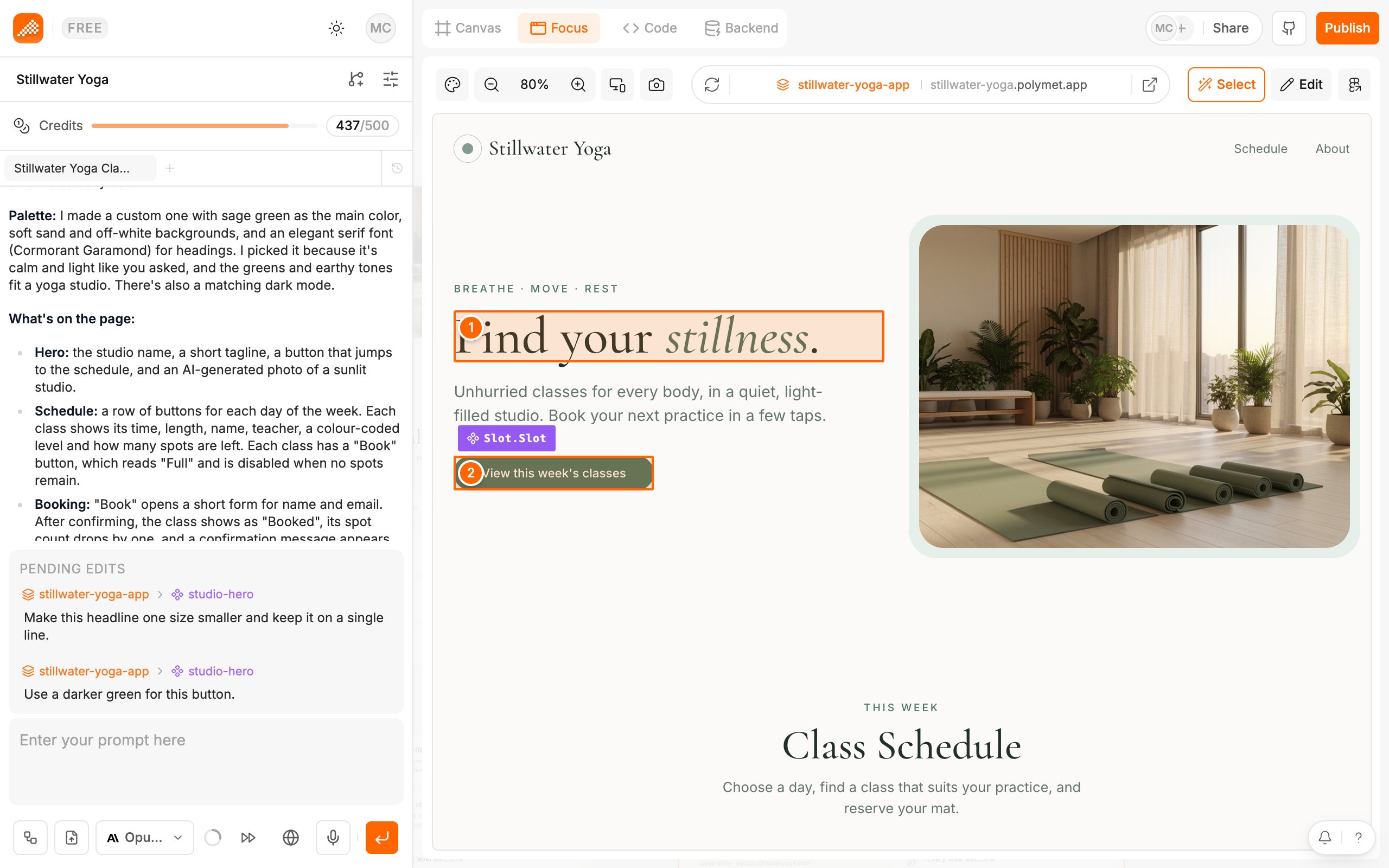
- Click an element in the preview. A note opens next to it.
- Type what should change, for example “Make this button full width on mobile”.
- Press Enter, or click Save. A numbered dot marks the element. Use Shift+Enter for a new line.
- Click more elements and add a note to each.
Send them to the agent
- Add a message in the generation input if you want to give overall context. You can also leave it empty.
- Click the send button at the right of the generation input.
Change or remove a note
- Click the element’s numbered dot.
- Click Edit to change the text and Save when done, or click Remove to drop it.
Limits
- Up to 10 pending notes at a time. At 10, Select turns off until you send or remove some.
- Select works on the latest version only. On an older version the tooltip says “You can only edit the latest version”.
- Select is off while a generation runs.
- While you have pending notes, the code editor is read-only. Send or remove them first.
- Select and Edit are separate tools. Turning one on turns the other off.
Related
- Edit visually — change styles and text yourself, without a generation
- Prompt the agent — everything else the generation input does
- Write better prompts — how to word a note so the agent gets it right
- Versions and rollback — go back if a change is not what you wanted