
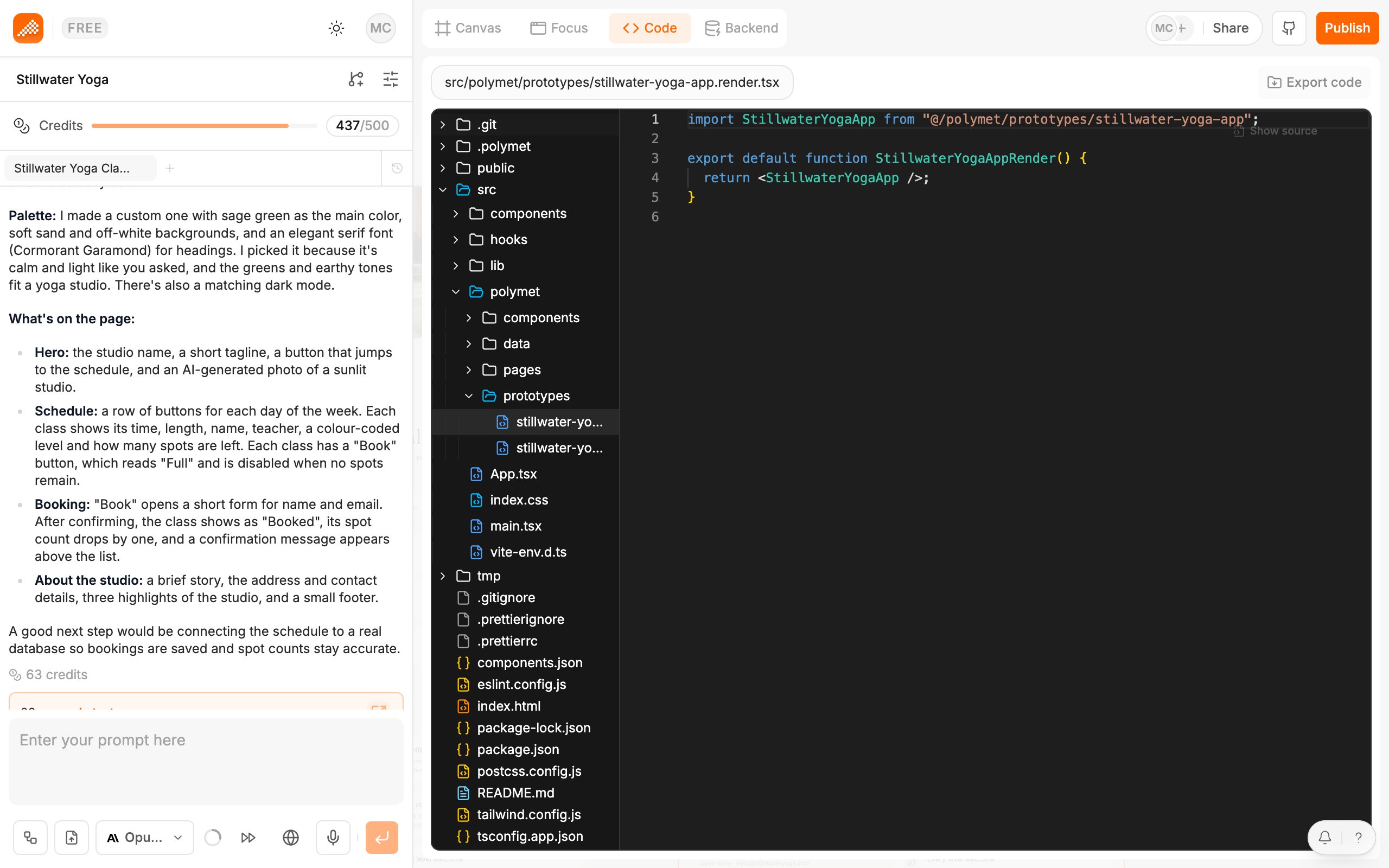
Open a file
- Click Code in the switch at the top left of the canvas (Canvas, Focus, Code, Backend).
- Pick a file in the file tree on the left.
Change and save
- Edit the file. You can change several files before saving.
- Save and Discard appear at the top of the editor.
- Click Save. A dialog lists every file you changed.
- Click Save again to confirm.
Errors block Save
While you type, Polymet checks that your code is valid and, for files shown on the canvas, that they still build. Problems show in the Errors panel under the editor, marked Syntax Error, Bundle Error or Error, with the file and line. Save stays off until they are fixed. Its tooltip says why:
An empty file counts as an error (“Code cannot be empty”). To remove a file, delete it from the file navigator instead.
When the editor is read-only
Click into the editor to see why. The common reasons:- A generation is running. Wait for it to finish.
- You have pending notes from Select. Send or remove them first.
- You have unsaved changes in the visual editor. Save or discard them first.
- You are looking at an older version. Switch to the latest one to edit.
- The file is a plan. Plan files are read-only.
Related
- Edit visually — change styles without touching code
- Pages, components and files — rename, delete and copy files
- Export your code — download the project as a ZIP
- Sync a project with a repository — edit in your own editor and keep both in step