
Quick changes
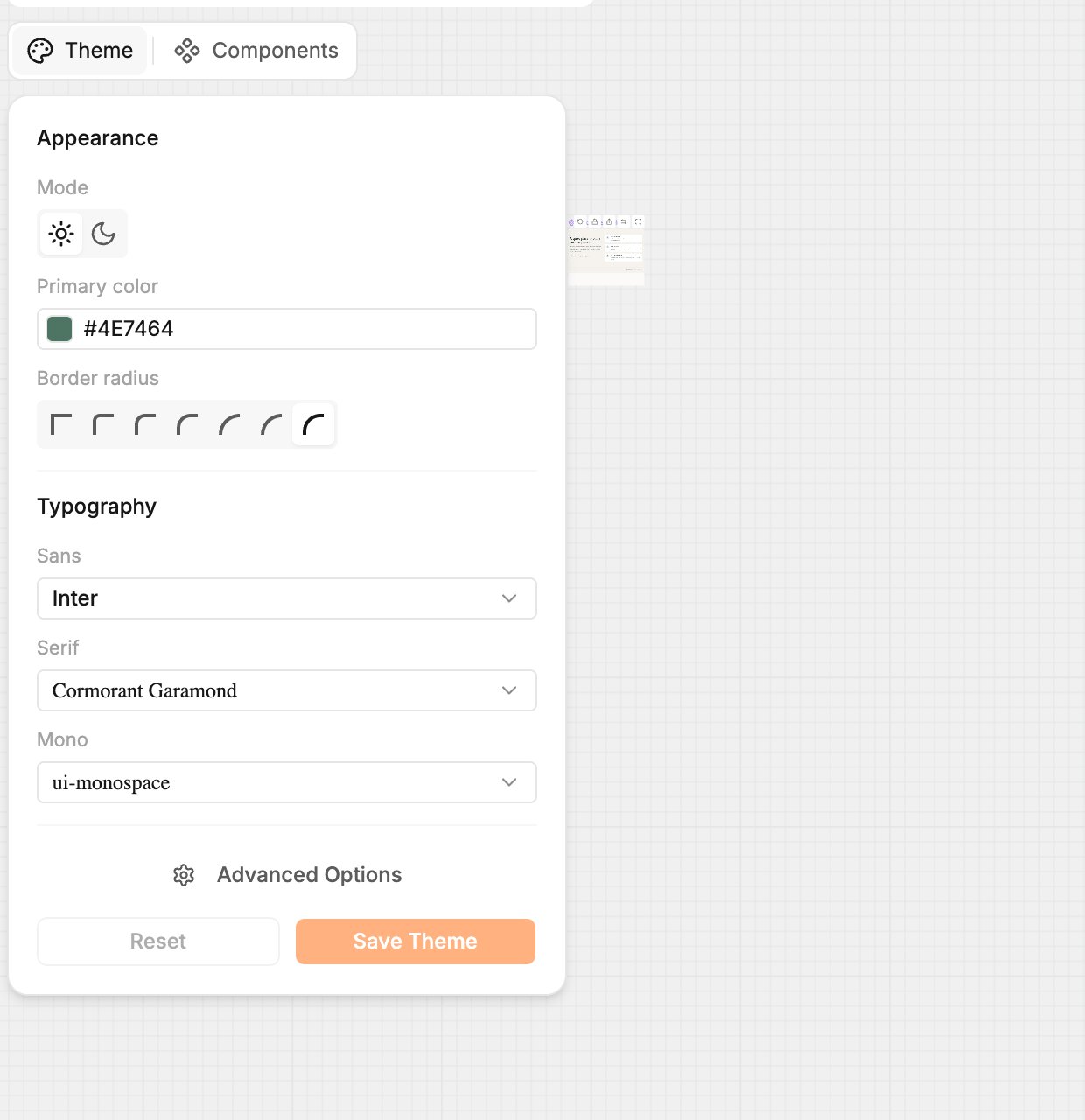
- On the canvas, click Theme at the top left.
- Change what you need:
- Primary color: your main brand color.
- Border radius: how round corners are.
- Typography: the Sans, Serif and Mono fonts, whichever your project uses.
- Mode: shows the preview in light or dark, so you can check both. It does not change the theme.
- Watch the canvas nodes update as you go.
- Click Save Theme. The theme is saved as a new version. Reset throws away unsaved changes.
Every setting
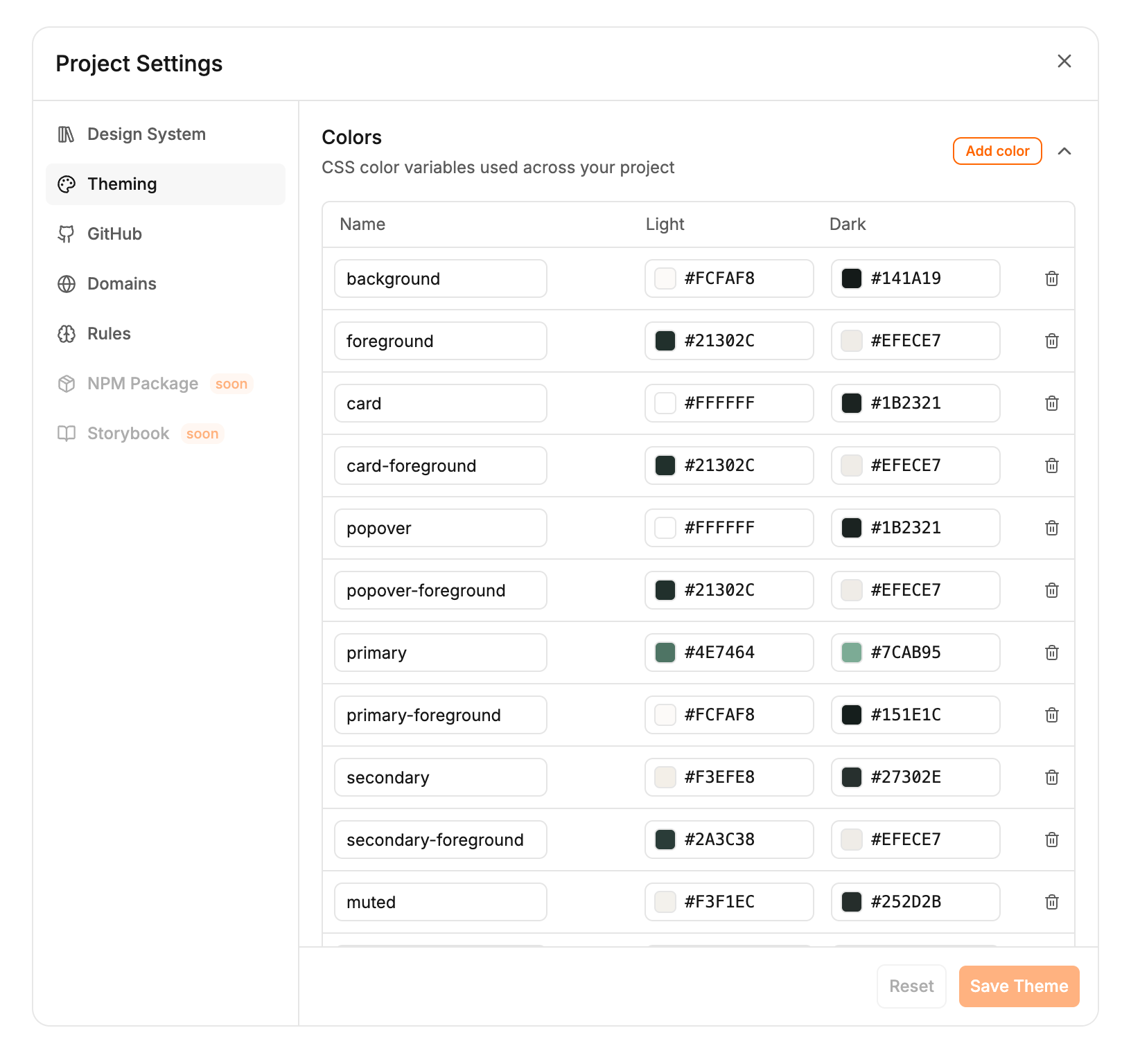
- Click the Project settings icon next to your project’s name, or Advanced Options in the Theme panel.
- Open Theming. It has four sections. Click one to open it; Add color and Add shadow appear once their section is open.
- Click Save Theme. If you changed a color that already existed, Polymet asks you to confirm, since designs using it will change.
When you cannot edit the theme
- Your project is linked to a design system. The panel says “Theme is inherited from the linked design system” and names it. Change the theme in the design system itself.
- You are looking at an older version. Go to the latest version to edit.
- A generation is running. Wait for it to finish, then save.
Theme or design system
A theme belongs to one project. A design system is its own project, with components and a theme, that you release for other projects to use. Linking one replaces the project’s theme with the design system’s.Related
- Design systems — share one look across many projects
- Use a design system in a project — link, update and unlink
- Edit visually — change one element instead of the whole project
- Project rules — written design guidance the agent follows