
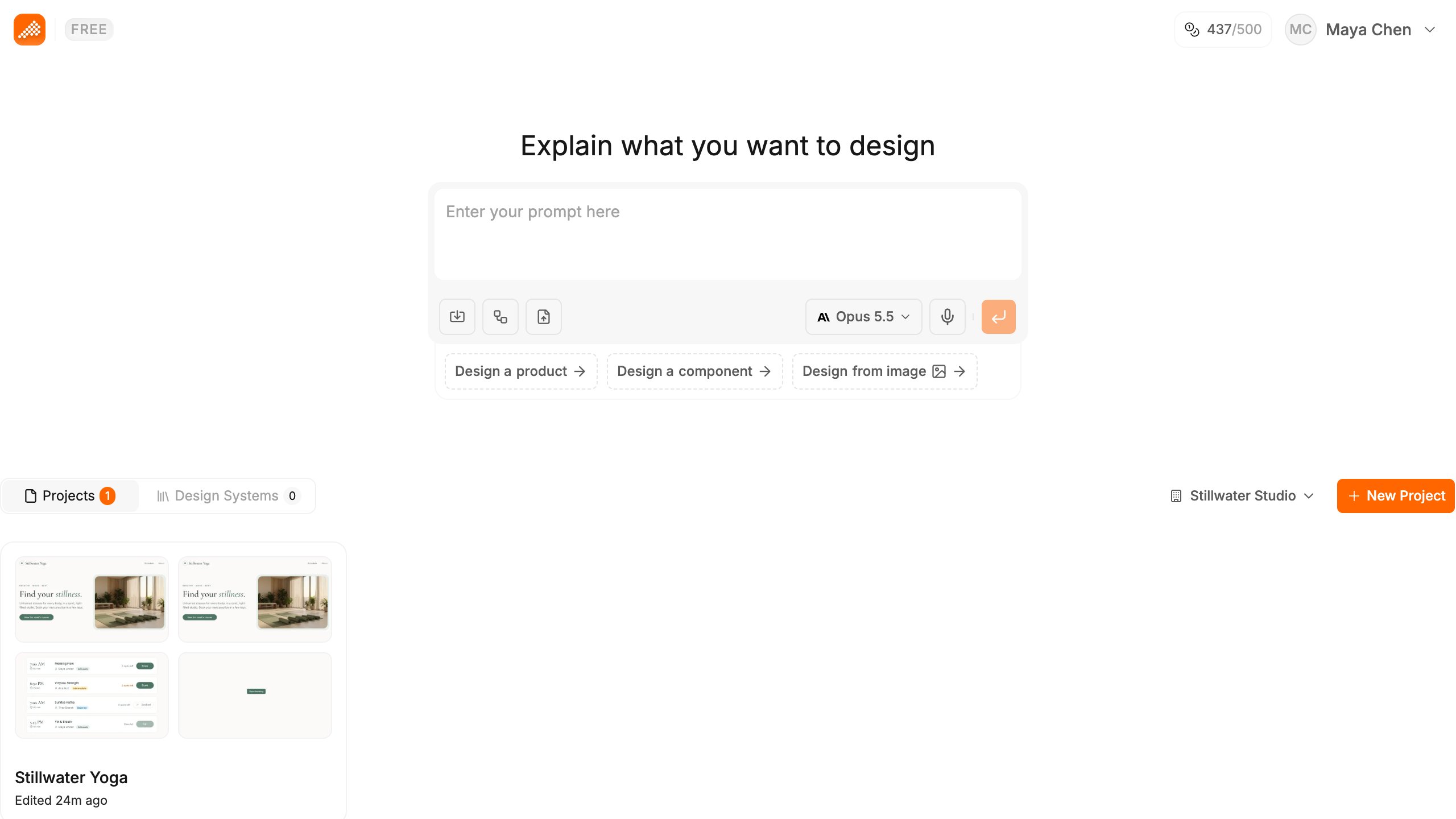
Start a project
There are three ways to start.- From a prompt. Type what you want into the generation input and send it. Polymet creates the project and opens it on the canvas.
- From something you already have. Use the import menu next to the generation input: Import from GitHub, Upload a ZIP or Import from Figma. See Import from GitHub or a ZIP and Import from Figma.
- Empty. Click New Project, give it a name in the Create new project dialog, and start prompting on the canvas.
Projects and design systems
The top bar has two tabs.- Projects — the apps you are building.
- Design Systems — design system projects, which other projects can follow. On this tab the button reads New Design System. See Design systems.
Switch organization
Projects, members, credits and the plan all belong to an organization. If you are in more than one, use the organization switcher to choose which one you are looking at.Share a project with your team
Open the menu on a project card and choose Share with team. Everyone in your organization can then open the project, including its chat history. Choose Stop sharing with team to undo it. To invite specific people instead, see Share a project.Duplicate a project
Open the menu on a project card and choose Duplicate. You pick which version to copy from, so you can branch off an earlier state of the project.Delete a project
Open the menu on a project card and choose Delete, then confirm in the Delete project? dialog. This cannot be undone. Only the project’s owner can delete it. A design system that has releases cannot be deleted from the menu. Contact support for that.Related
- Build your first project — the first prompt to a live link
- Your organization — rename or leave an organization
- Invite your team — add people to your organization