
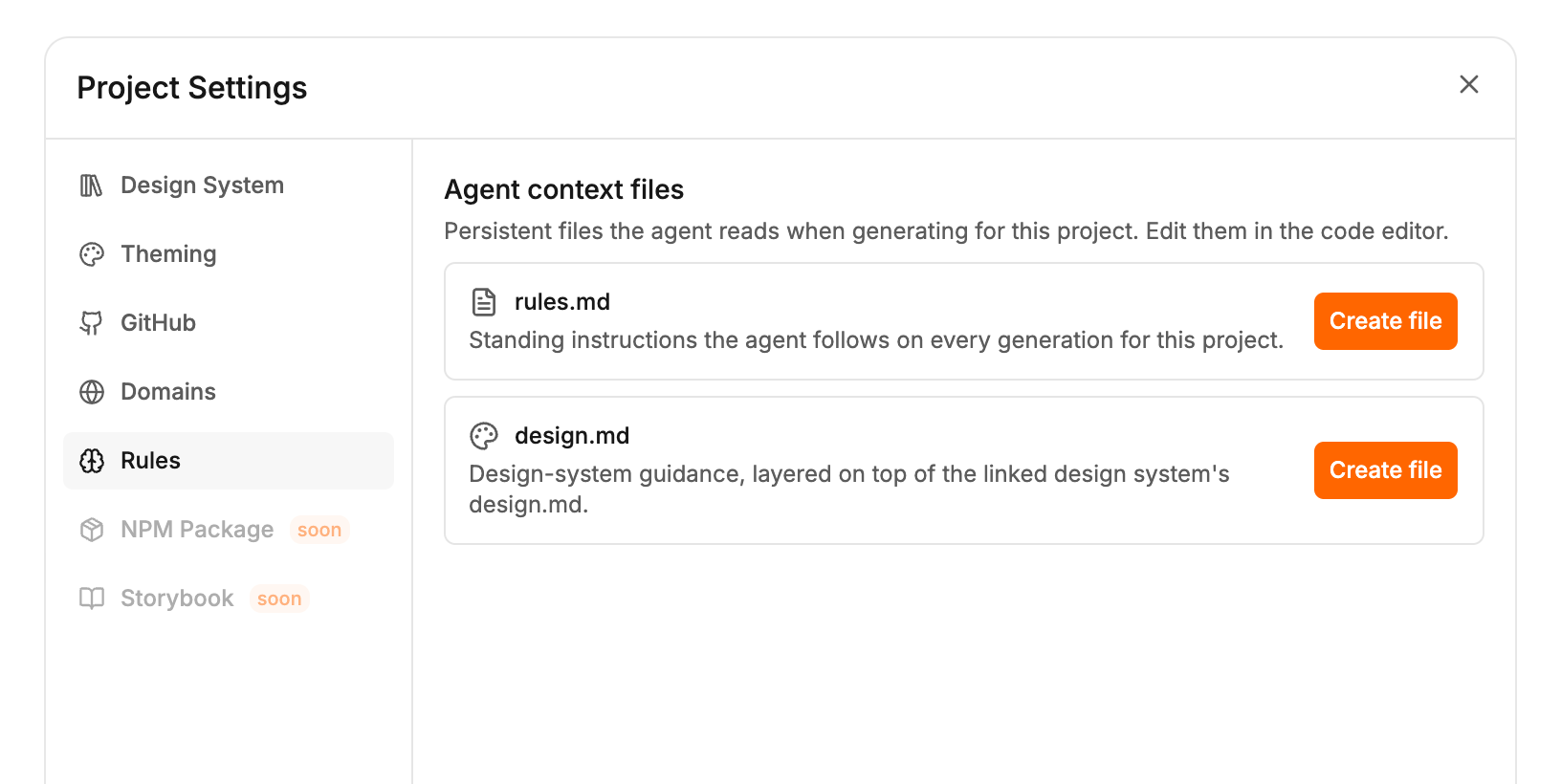
Two files
Both are plain text files in your project, in the
.polymet folder. You write them in Markdown.
Create a file
- Click the Project settings icon next to your project’s name.
- Open Rules.
- Click Create file next to rules.md or design.md.
- The file opens in the code editor with a heading. Write your rules under it.
- Click Save, then Save in the dialog.
Write rules that work
- One rule per line, as a bullet.
- Say what to do, with a name or a number. “Each page has at most one primary button” beats “Keep pages clean”.
- Keep it to rules that hold for the whole project. Put one-off requests in the prompt.
With a design system
If the project is linked to a design system, the agent reads the design system’s design.md first, then yours on top. Where the two disagree, yours wins. Design guidance is capped at 10,000 characters in total. When both files together run over, the design system’s part is shortened first.Related
- Write better prompts — what goes in a rule and what goes in a prompt
- Edit code — the editor the rules files open in
- Themes — colors and fonts belong in the theme, not in rules
- Use a design system in a project — link the design system whose guidance you build on