
Who can comment
You can comment on any project shared with your team: Only people invited or Everyone at your organization, set in Share. A Private project has no comments. Its comment button says “Share this project to comment”. Everyone who can open the project sees its comments. Comments are on every plan.Leave a comment


- Open the project on the canvas. Click the comment button at the left end of Share, or press C.
- Move the pointer over your design. The part under it is highlighted, with its name above it.
- Click where the comment should go: on part of a page, or on an empty spot of the canvas.
- Type your comment and send it.
Comment mode on: the headline is highlighted under the pointer, and a click leaves a pin and opens the comment box.
Reply, mention and resolve
Click a pin to open its comment. The top of it says which page and part of the page it is on.
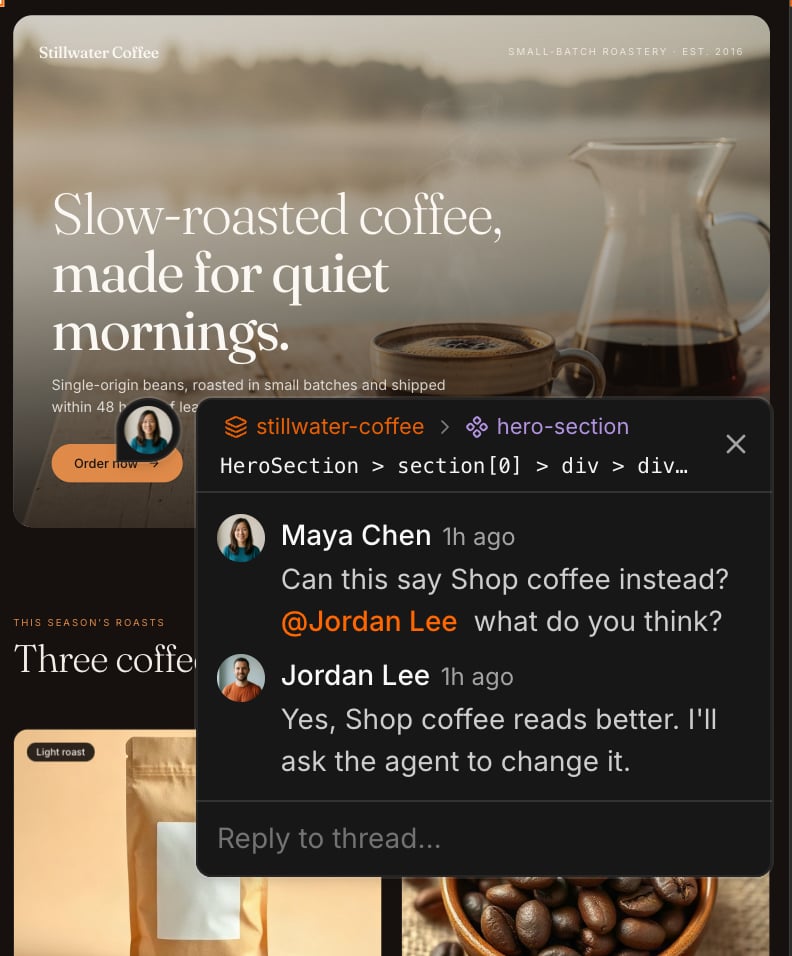
- Reply in the box under the comments.
- Mention someone by typing @ and picking their name. You can mention anyone who can open the project. They see it in their inbox, and get an email if they don’t read it in Polymet first.
- React, edit or delete from a comment’s … menu. An edited comment is marked “(edited)”.
- Resolve a comment when it is done, with the check mark at its top. Its pin goes away for everyone. You can reopen it from the inbox.
Pins stay with your design
- A pin on a button stays on that button when you move the page, resize it or scroll it.
- To move a pin, drag it onto another spot. Press Escape while dragging to leave it where it was.
- A comment left with the page at one size shows when the page is back at a similar size.
- Each branch has its own comments. A comment left on a branch shows only on that branch.
On phones and tablets
- On a phone you can read and reply to comments from the inbox, in the top bar. Leave new comments on a computer.
- On a tablet, comments open in the full-size view of the page.
Related
- Your inbox and comment emails — where mentions and replies reach you
- Share a project — open a project to your team so they can comment
- Work at the same time — see your teammates’ cursors and send quick messages
- Branches — each branch keeps its own comments