
Open the inbox
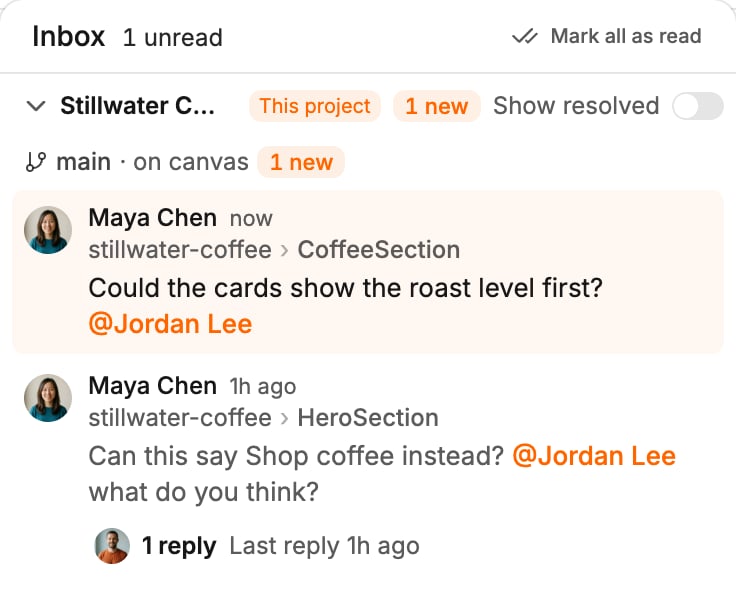
Click Inbox at the top of the chat on the canvas, or at the top of the projects page. On a phone it is in the top bar. A number on it shows how many you haven’t read. Past nine it reads “9+”.What you see
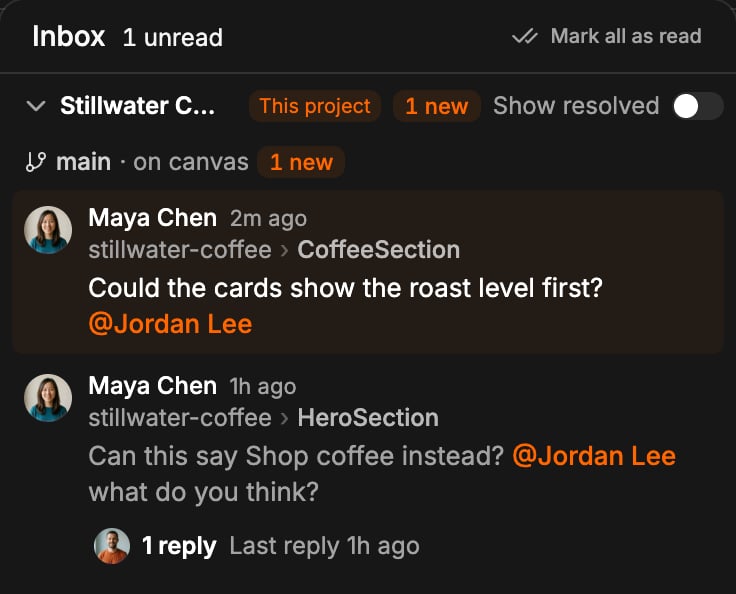
- On the canvas, the project you have open comes first, as This project, sorted by branch.
- Other projects come next. Their comments open in a new tab, so your canvas stays as it is.
- Each row shows who wrote it and when, where it is, and how many replies you haven’t read. Unread rows stand out.
- When you have no mentions or replies yet, it says “You’re all caught up”.
Go to a comment
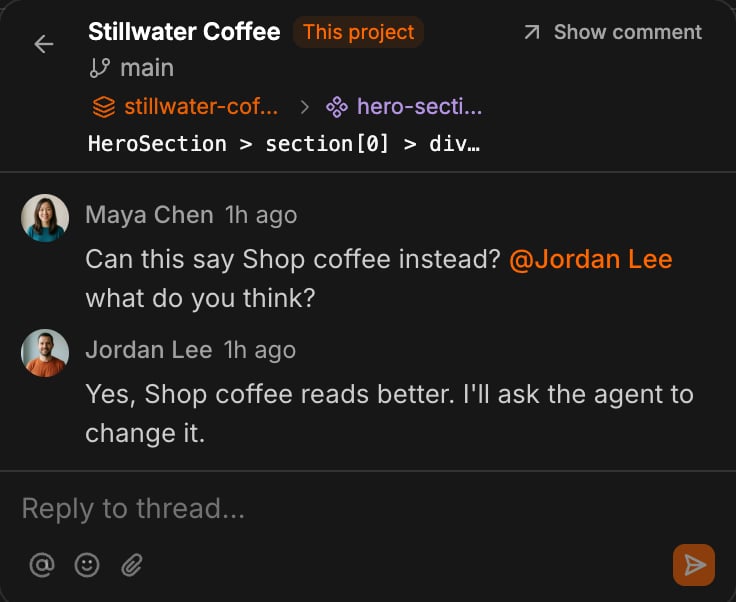
Open a comment in the inbox and click Show comment. Polymet takes you to its pin and opens it.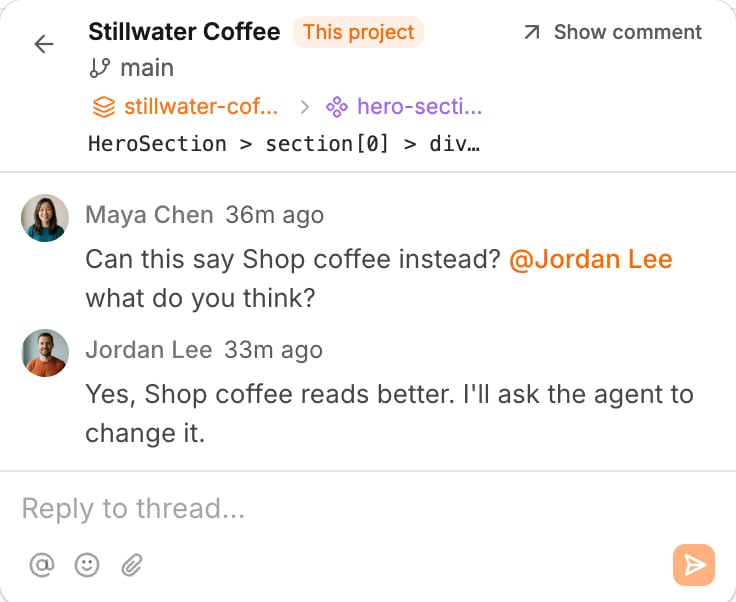
- If the comment is on another branch, Polymet asks before switching: click Switch branch.
- If it is in another project, Polymet asks before opening it in a new tab: click Open in new tab.
Keep the list tidy
- On a project’s canvas, turn on Show resolved under This project to see its resolved comments too. They are marked “Resolved”.
- Click Mark all as read to mark everything read and clear the number on the inbox.
- To stop hearing about one comment, open its … menu and click Unsubscribe from thread.
Comment emails
If someone mentions you, or replies to a comment you took part in, and you don’t read it in Polymet, you get an email. The subject says what happened, for example “Jordan mentioned you in Landing page”. Open the comment in the email takes you to it. If you read the comment in Polymet first, no email is sent.Turn comment emails off
- Click your picture to open the profile menu, then click Settings.
- Under User, click Profile.
- Turn off Comment emails.
Related
- Comment on a design — leave comments and mention teammates
- Your profile — where you turn comment emails on or off
- Troubleshooting — when a comment can’t be shown or you can’t comment